Removing Sidebar Navigation Menu
On the previous version of Web Express, the Context module may have been used to remove the sidebar navigation from a particular page. Since Context is not part of the new Web Express, the navigation will appear again once a site is migrated.
The sidebar navigation appears on all pages of a site if there are child pages to show.
Removing sidebar navigation from a basic page
- Navigate to the page you want to remove the sidebar navigation from
- Click the 'Layout' link in the blue bar at the top of the page
-
Once you've entered the Layout Builder, you will see the layout sections of the page. In the right column you should see three placeholders. These placeholders are what displays the sidebar navigation on a basic page.
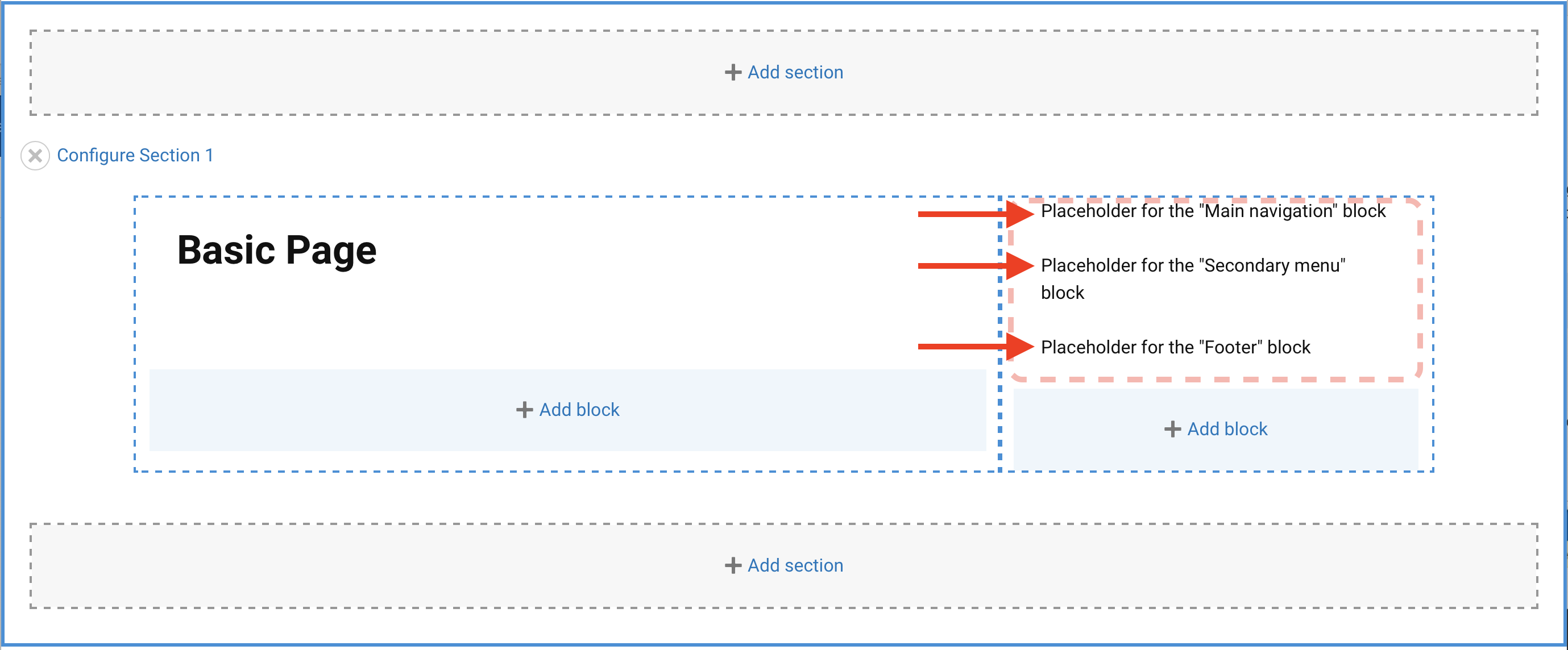
-
Move your pointer over the placeholder and click the pencil icon, then chose "Remove Block" from the popup.
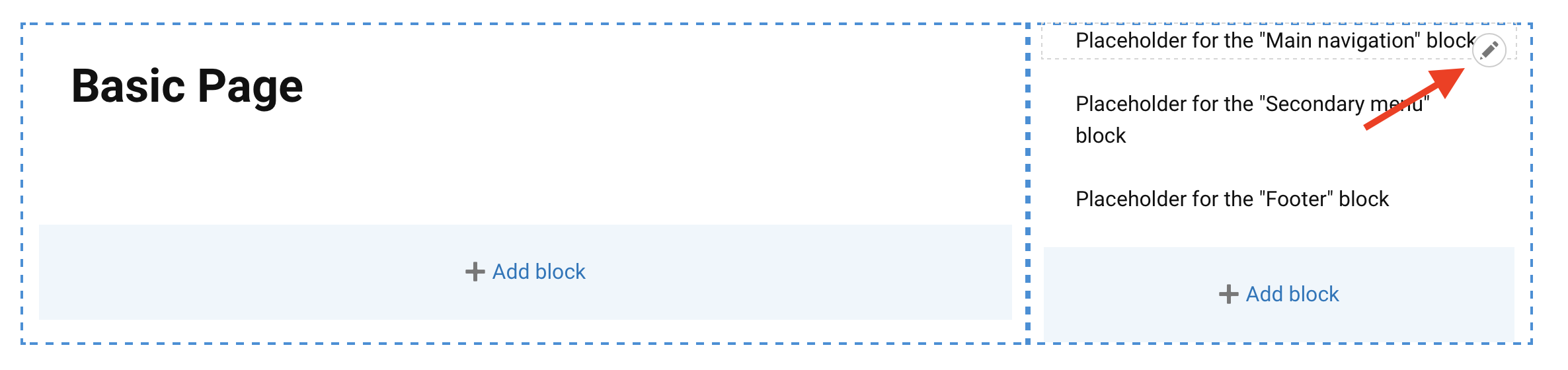
- Click the "Remove" button on the confirmation screen.
- Repeat steps four and five for each placeholder.
- The empty column does not need to be removed. If the column is empty, it will not display.
- Scroll to the top and click the "Save Layout" link.
Removing sidebar navigation from other content types
The following steps require the Site Manager or Layout Manager role
- Navigate to Manage > Structure > Block Layout
-
Scroll down and click the configure button next to the "Sidebar menu" in the Sidebar region

-
The sidebar menu is added to every non-basic page by default. It will only appear on the page if there are child menu items. To remove it from a particular page you'll need to configure the block not to show for that page.
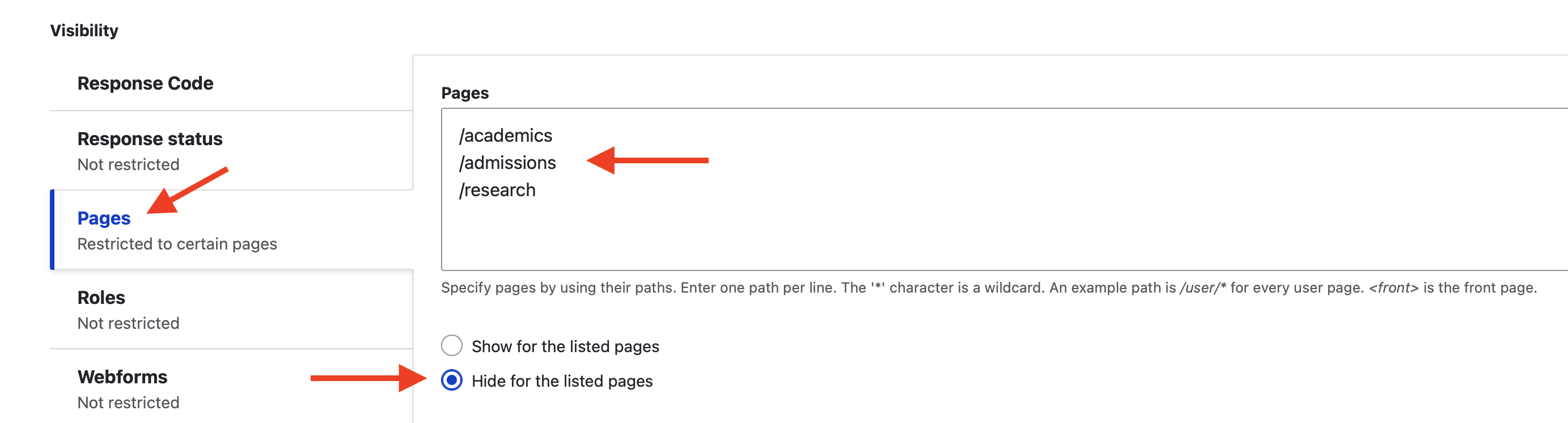
- Chose the "Pages" option from the vertical tabs.
- Add in the paths for the pages you want to remove the sidebar navigation from. You can use the url path or node/node ID.
- Make sure you click the "Hide for the listed pages" radio button.
- Scroll to the bottom and click the "Save block" button.
